
What to Look For in a Work Monitor
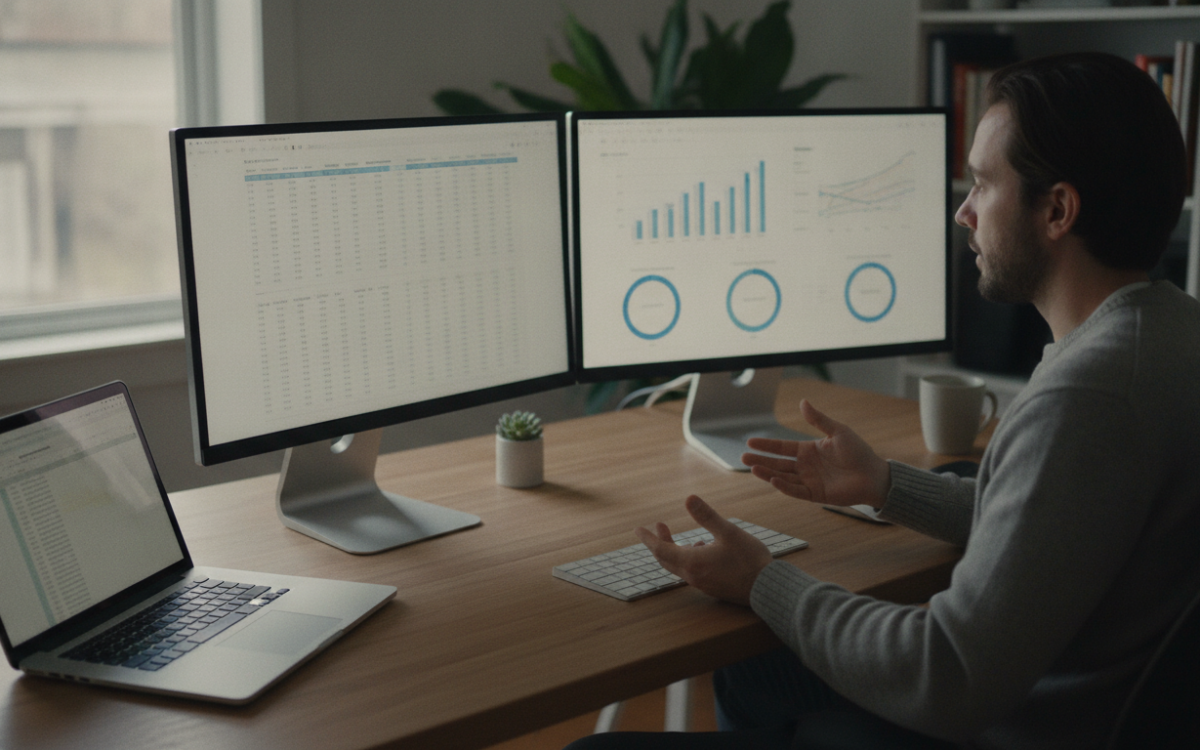
Quick answer: When picking a work monitor, focus on size, resolution, panel type, and ports. A sharp, comfortable screen cuts eye strain and helps you work faster. Match the monitor to your real tasks and desk space, not just the biggest or cheapest option on the shelf.
Key Takeaways
- A 24 to 27 inch work monitor with sharp resolution fits most office tasks.
- Panel type affects color and viewing angle, so IPS is a safe pick for general work.
- Check the ports first to make sure the monitor connects to your computer.
- Eye comfort features like adjustable height and tilt matter more than flashy specs.
- Buy for your real tasks, not for the biggest screen you can find.
A good screen can make your whole workday feel easier. The right one is sharp, comfortable, and fits your desk. The wrong one strains your eyes and wastes money. So let’s break down what actually matters.
Below, I’ll walk you through the specs that count. No hype. Just plain advice you can use.
What should you look for in a work monitor first?
Start with size, resolution, and ports. These three decide if a work monitor fits your job and your computer. Everything else is a bonus.
Size is about your desk and your tasks. A screen that is too big can crowd a small desk. One that is too small makes you squint. For most office work, a 24 to 27 inch screen feels right.
Resolution is about sharpness. More pixels mean crisper text. Sharp text is easier to read for hours. So don’t ignore this one.
Ports matter because a screen is useless if it won’t plug in. Check your laptop or desktop first. Then make sure the monitor has a matching connection.
How do you pick the right size and resolution?
Match the size to your desk space and how far you sit. Match the resolution to the size so text stays sharp.
Here is a simple way to think about it:
- Small desk or single task: a 24 inch screen is plenty.
- Spreadsheets, writing, and browsing: a 27 inch screen gives more room.
- Lots of windows at once: consider two screens instead of one giant one.
Bigger screens need more pixels to look clean. A large screen with low resolution looks fuzzy. So pair a bigger size with a higher resolution. That keeps your work monitor crisp and easy to read.
Also think about how close you sit. If your face is near the screen, a huge monitor forces you to turn your head. That gets tiring fast.
Why does panel type matter?
Panel type affects color, contrast, and viewing angle. For most office work, an IPS panel is a safe choice.
You’ll see a few panel types listed in the specs. IPS panels give good color and wide viewing angles. That means the picture stays clear even when you glance from the side. For a shared desk or video calls, that helps.
Other panel types can be cheaper or faster. However, they may wash out at an angle. For a work monitor used all day, steady color and clear angles usually win. Unless you edit photos or video, you don’t need a fancy pro panel.
What ports and extras should a work monitor have?
Your monitor needs a port that matches your computer. Common ones include HDMI, DisplayPort, and USB-C.
USB-C is worth a look if you use a laptop. One cable can carry video and charge your laptop at the same time. That keeps your desk tidy. But make sure your laptop supports it first.
Built-in USB ports are handy too. They let you plug in a mouse or keyboard through the screen. Small thing, but it cleans up cable clutter.
Speakers and webcams are sometimes built in. They are usually basic. Don’t pay extra for them unless you really need them.
How do you protect your eyes and posture?
Comfort features often matter more than flashy specs. Look for a stand that adjusts height and tilt.
You want the top of the screen near eye level. That keeps your neck straight. A stand that moves up and down makes this easy. Tilt helps you dodge glare from windows or lights.
Many screens list low blue light or flicker free modes. These can ease eye strain during long days. They won’t replace good breaks, though. Look away from your screen often and rest your eyes.
A matte finish cuts reflections. If your room is bright, a glossy screen can bounce light back at you. That gets annoying fast.
How do you judge value and avoid overpaying?
Judge value by matching features to your real tasks. Skip specs you won’t use.
Some monitors push very high refresh rates. That helps gamers, but office work rarely needs it. Paying for it wastes money. A steady, standard refresh rate is fine for a work monitor.
Compare a few options side by side. Check the size, resolution, panel type, and ports. Then look at the warranty. A longer warranty can save you later. If you buy for a small business, keep receipts and warranty details in one place. The SBA has helpful tips on tracking business tools and records.
Read a mix of reviews before you buy. Look for patterns. If many people mention a dead pixel issue or a wobbly stand, take note. One bad review is noise. Ten saying the same thing is a signal.
Also think about the future. Will this screen still fit your work in a year or two? A slightly better work monitor now can outlast a cheap one you replace soon.
Making your choice
Now you know the specs that count. Start with size, resolution, and ports. Then add comfort features and skip the extras you won’t use. Take your time, compare a few, and pick the one that fits your work. You’ve got this.
Frequently Asked Questions
What size work monitor is best for an office?
For most office tasks, a 24 to 27 inch work monitor works well. A 24 inch screen fits small desks and single tasks. A 27 inch screen gives more room for spreadsheets and multiple windows. Pick based on your desk size and how far you sit from the screen.
Do I need a curved monitor for work?
Most people don’t need a curved screen for office work. Curved monitors can feel nice on very wide screens. For standard tasks like writing, email, and browsing, a flat screen is just fine. Spend your money on sharp resolution and a good stand instead.
Is USB-C important on a work monitor?
USB-C is useful if you work from a laptop. One cable can send video and charge your laptop at once. That cuts desk clutter. But check that your laptop supports USB-C video output first. If it doesn’t, HDMI or DisplayPort will do the job.
Does resolution really matter for office work?
Yes, resolution affects how sharp your text looks. Sharper text is easier to read for long hours, so it reduces eye strain. Bigger screens need higher resolution to stay crisp. Match the resolution to the screen size so your work monitor looks clean and clear.
How can I reduce eye strain from my monitor?
Set the top of the screen near eye level and tilt it to avoid glare. Use a matte finish if your room is bright. Low blue light and flicker free modes can help. Most important, take breaks often and look away from the screen to rest your eyes.
For more, see our Tech & Digital Essentials guides.
Software features, plans, and pricing change often. Always check the current details on the provider’s own site before you sign up.